WooCommerce Points and Rewards is the official extension from WooCommerce.com. It does points per purchase and redemption well. Some stores move to Wren Loyalty for its free core program, its points ledger, or Pro features like referrals and tiers. Whatever your reason, this guide shows how to switch without customers losing a point.
If you want the general version for any plugin, read how to move loyalty points to a new plugin.
Before you start
- Back up your database. Wren only reads the extension's data, but always have a backup.
- Write down your settings. Go to WooCommerce → Points & Rewards → Settings and note the Earn Points Conversion Rate (for example, 1 point for $1), the Earn Points Rounding Mode, the Redemption Conversion Rate (for example, 100 points for $1), and the Maximum Points Discount.
- Note product and category overrides. The extension lets you set Points Earned on categories and products. Make a list of the ones you use.
- Pick a quiet time. While both plugins are active, an order can earn points in both. Keep the overlap short.
What moves over
| Points and Rewards data | Moves to Wren? |
|---|---|
| Each customer's points balance | Yes. Wren adds up points_balance for each customer in the wc_points_rewards_user_points table. If that table doesn't exist, it reads the user meta _wc_points_balance or wc_points_balance. |
| Points Log | No. Each customer gets one history line, "Imported from WooCommerce Points and Rewards", for their full balance. |
| Conversion rates and rounding | No. You set these in Wren (step 2). |
| Category and product points | No. Wren has its own per-product and per-category settings. |
| Signup and review points | No. Wren has a welcome bonus and a product review bonus. |
| Expiry | No. The free version of Wren doesn't expire points. Pro adds expiry. |
Step by step
1. Install Wren Loyalty and leave the extension active
Install and activate Wren Loyalty. Keep Points and Rewards active until the import is done.
2. Match your rates
Open WooCommerce → Loyalty → Settings. Under Earning, set Points per currency unit spent. The extension asks for two numbers, points and dollars, so divide them: "1 and 1" is 1, "5 and 1" is 5. Set Rounding to match your old rounding mode (down, nearest or up).
Under Redeeming, set Points needed for each currency unit off to the points half of your Redemption Conversion Rate. "100 and 1" means 100. If you used a Maximum Points Discount, set Maximum discount per order to the same fixed amount or percentage of the order.
3. Recreate your overrides
On each product or category from your list, set Loyalty points to Fixed points per item or Earns no points. Product settings win over category settings, like before.
4. Preview the import
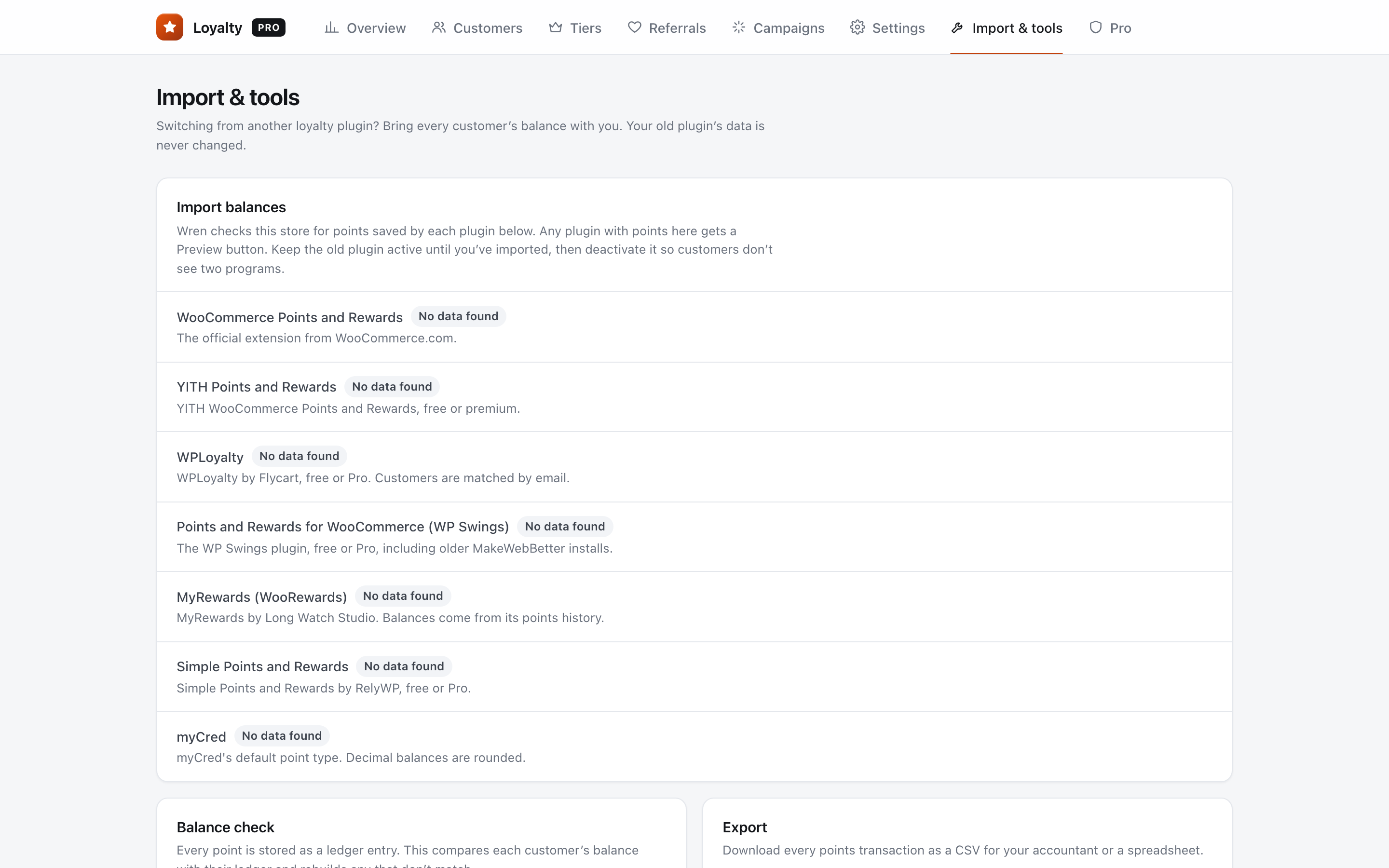
Go to WooCommerce → Loyalty → Import & tools. The WooCommerce Points and Rewards row shows how many points and customers Wren found. Click Preview. Nothing changes yet.
5. Download the preview and spot-check three customers
Click Download the full list (CSV). The columns are user_id, name, email, points_in_woo-points-rewards, status, wren_balance_now and wren_balance_after_import. Customers whose WordPress account no longer exists, or whose balance is zero or less, are marked as skipped.
Pick three customers and compare them with WooCommerce → Points & Rewards → Manage Points.
6. Run the import
Click Import now. Each customer is imported once, so if you run it again later, customers already imported are skipped and nobody's balance doubles.
7. Check a customer in Wren
Open WooCommerce → Loyalty → Customers, search by name or email, and open one of your three customers. Check the balance and the "Imported from" line in their history.
8. Test checkout with a test customer
In a private window, log in as a test customer with points, use some at checkout, and place a test order. The balance should drop by the points used.
9. Deactivate the extension
Deactivate WooCommerce Points and Rewards so customers see one program. Delete its data later, once you're sure you won't need the Points Log.
After the switch
Send customers one short email:
Subject: Your points have moved
"Hi {first_name}, we've moved our rewards program. Your {balance} points came with you and are worth exactly the same. You'll find them on your account page."
FAQ
Will deactivating the extension delete my customers' points?
No. According to WooCommerce's documentation, the extension only removes its data if you tick Delete plugin data in its settings and then delete the plugin. Avoid the reset option it adds under WooCommerce → Status → Tools until you're sure you're done with the old data.
I used percentages like 200% on some categories. How do I copy that?
Wren's per-product and per-category settings use a fixed number of points per item, not a percentage. Work out the points a typical product in that category earned and use that, or leave it on the store earn rate.
Can I still see the old Points Log?
Not in Wren. The log stays in the extension's own data, which Wren never changes, so keep that data until you're sure you won't need it. If you want a record you can open anywhere, take what you need from the Points Log before you deactivate. From now on, Wren's Download ledger CSV gives you every new transaction.