myCred is a points system for all of WordPress, not just your store. Many shops use it to reward purchases and let customers pay with points. If you'd like a program built only around WooCommerce, with points redeemed in the cart and checkout, Wren Loyalty can import your myCred balances. This guide shows how, and what to watch for if you keep myCred running for other things.
For the general approach with any plugin, see how to move loyalty points to a new plugin.
Before you start
- Back up your database. Wren only reads myCred's data, but always have a backup.
- Note how points were earned. myCred's Store Rewards set points per product, in a myCred box on each product's edit screen, and per variation. Note what your typical products give.
- Note what points were worth. If customers paid with points, open the myCred gateway in WooCommerce's payment settings and note its exchange rate between your currency and points.
- Decide what happens to myCred. If it also runs ranks, badges or other site rewards, you'll keep it active and switch off only its store features.
- Pick a quiet time. While both are active, a purchase can earn points in both. Keep the overlap short.
What moves over
| myCred data | Moves to Wren? |
|---|---|
| Default point type balance | Yes. Read from the user meta mycred_default. Decimal balances are rounded to whole points. |
| Other point types | No. Only the default point type is imported. |
| Points log | No. Each customer gets one history line, "Imported from myCred", for their full balance. |
| Per-product rewards and exchange rate | No. You set these in Wren (step 2). |
| Hooks, ranks and badges | No. They stay in myCred. |
Step by step
1. Install Wren Loyalty and leave myCred active
Install and activate Wren Loyalty. Keep myCred active until the import is done.
2. Match the value of points
Open WooCommerce → Loyalty → Settings. Under Redeeming, set Points needed for each currency unit off. Work out from the myCred exchange rate how many points made one dollar (or euro, or pound), and enter that number. Balances then keep their value.
Under Earning, Wren gives points per currency unit spent, set in Points per currency unit spent. Pick a rate close to what your products gave. For products that should give a set amount, edit the product and set Loyalty points to Fixed points per item.
3. Preview the import
Go to WooCommerce → Loyalty → Import & tools. The myCred row shows the points and customers Wren found. Click Preview. Nothing is imported yet.
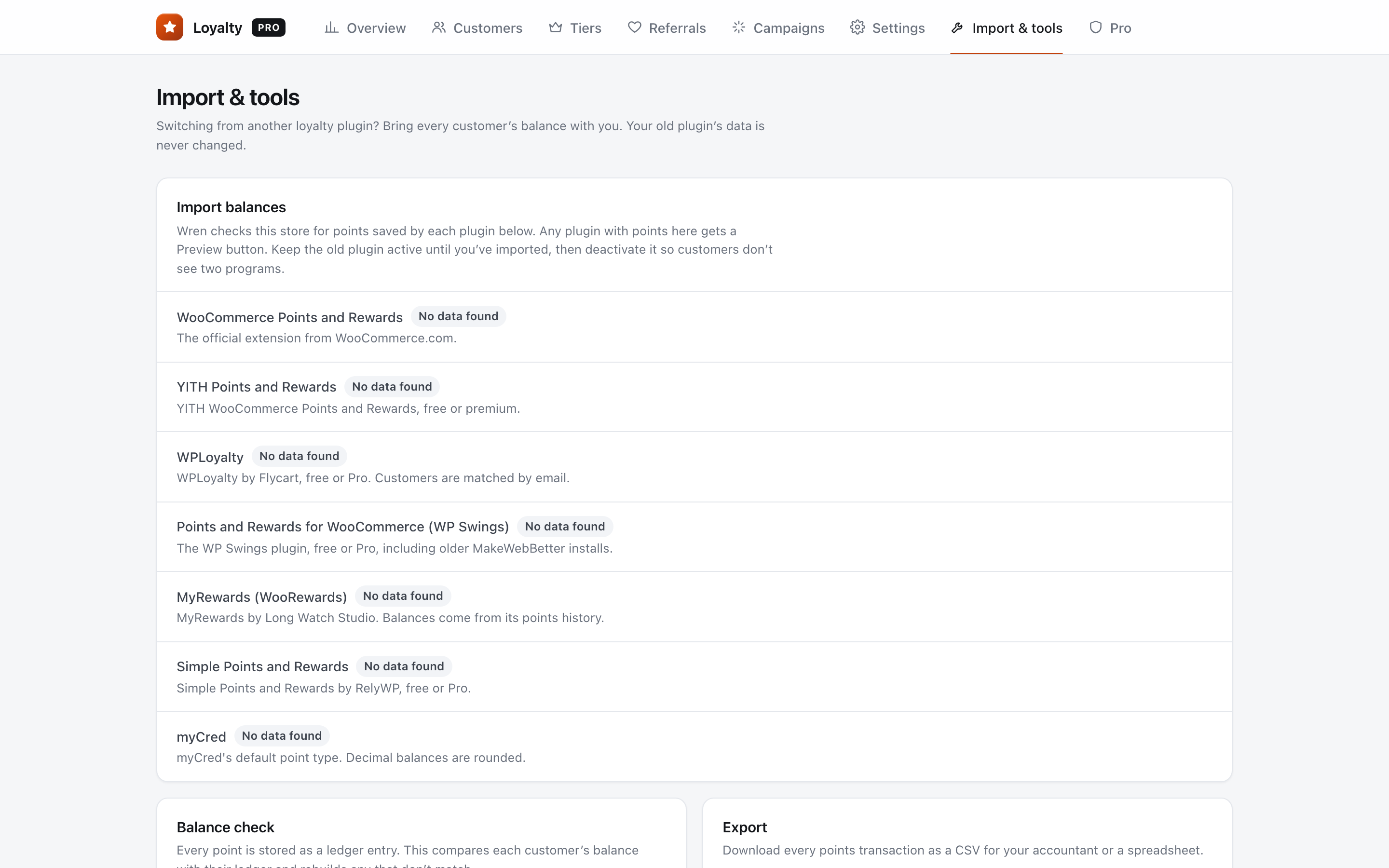
4. Download the preview and spot-check three customers
Click Download the full list (CSV). It has user_id, name, email, points_in_mycred, status, wren_balance_now and wren_balance_after_import. Because myCred balances can be any user, not only customers, expect some rows for staff or members who never ordered. Rows with a balance of zero or less are skipped.
Compare three customers with their balance in myCred.
5. Run the import
Click Import now. Each person is imported once, so running it again never doubles a balance.
6. Check a customer in Wren
Go to WooCommerce → Loyalty → Customers, search by name or email, and open one of your three customers. The balance should match, with "Imported from myCred" in the history.
7. Test checkout with a test customer
In a private window, log in as a test customer with points. Use some points in the cart or checkout and place a test order. Check the balance went down.
8. Turn off myCred's store features, or deactivate it
Wren never changes myCred balances, so customers still have their old myCred points after the import. If myCred is only used for your store, deactivate it. If you keep it for other things, disable the myCred payment gateway in WooCommerce and untick the myCred reward on your products. Otherwise customers could spend the same points twice. Delete old myCred data only later, when you're sure.
After the switch
Tell customers where their points went:
Subject: Your store points have moved
"Hi {first_name}, your {balance} points now live in our new rewards program. They're worth the same, and you can use part of them in the cart or at checkout instead of paying for a whole order with points."
FAQ
I have more than one myCred point type. Which is imported?
Only the default point type. Other types stay in myCred.
Some balances have decimals. What happens?
Wren uses whole points, so each balance is rounded to the nearest whole number. The preview CSV shows the rounded figure for every person before you import.
Can customers still pay for a whole order with points?
Wren works differently. Customers use a slider to take points off the order as a discount, alongside any other payment method. You can set a minimum number of points, a minimum order and a maximum discount per order.